

This is the solution I use to manage citations and bibliography directly in Obsidian, without ever leaving the writing flow.
Why not just use Word?
That is the legitimate question anyone with an already-working workflow will ask: Word + Zotero works well, it is tried and tested, and colleagues know how to open a .docx. Why complicate things?
The short answer is: separating content from formatting. When writing in Word, visual formatting is always present and interferes with thinking — you adjust the indent, fix the heading, fight with the page number. Writing in Markdown means writing text, and only text: structure is declared with a handful of symbols (# for headings, ** for bold), and final formatting becomes a problem to deal with afterwards, and only once.
The practical advantage is portability: an .md file is plain text, readable by any editor, version-controllable with Git, convertible to any format via Pandoc. It does not depend on any proprietary software, does not get corrupted, and has no compatibility issues between versions.
This post is part of a broader line of thinking about using Markdown as a single tool for academic writing — from note-taking to producing articles, all the way to presentations (we will come back to this with a dedicated article on Marp, which I am progressively using in place of PowerPoint in teaching). For now, let’s focus on one specific piece of the puzzle: bibliographic citations.
Some context
Zotero is an open source reference manager, now the de facto standard in academic research: it lets you collect references, attach PDFs, annotate them, and produce bibliographies in any citation style. We will cover it in detail in a future dedicated article.
Obsidian is a Markdown note-taking editor that in recent years has established itself as a writing and knowledge management tool, particularly in academia. This too deserves its own article: for now it is enough to know that it is a text-based tool, extensible via plugins, and that it saves everything in .md files readable by any editor.
Pandoc is a universal document converter, capable of turning Markdown files into Word, PDF, HTML and many other formats — also handling bibliographic citations through its own [@citekey] syntax. It is the tool underlying much of the plain-text academic writing workflow; we will come back to this too in a dedicated article.
What interests me here is a specific use case: writing an academic text in Obsidian and inserting citations linked to Zotero, with automatic production of the bibliography list — without exporting intermediate files, without leaving the editor.
The plugins you need
You need two Obsidian plugins (both installable from Settings → Community Plugins → Browse) and no additional plugin for Zotero:
- Zotero Integration (by mgmeyers) — handles inserting citations
- Pandoc Reference List — generates the bibliography list in real time
Both communicate directly with the local server that Zotero exposes while it is running (port 23119), the same mechanism used by the Word and LibreOffice integration. There is no need to export any .bib file.
The only prerequisite is that Zotero must be open in the background while you write.
Configuring Zotero Integration
Once the plugin is installed, you need to create at least one Citation Format. This defines how the citation will be inserted into the text.
For the workflow described here, the format to create is (by convention) called Pandoc with Brackets and has these settings:
- Output Format:
Pandoc - Include Brackets: enabled ✓
This will produce citations in the format [@CitationKey], which is the standard pandoc syntax for bibliographic citations.
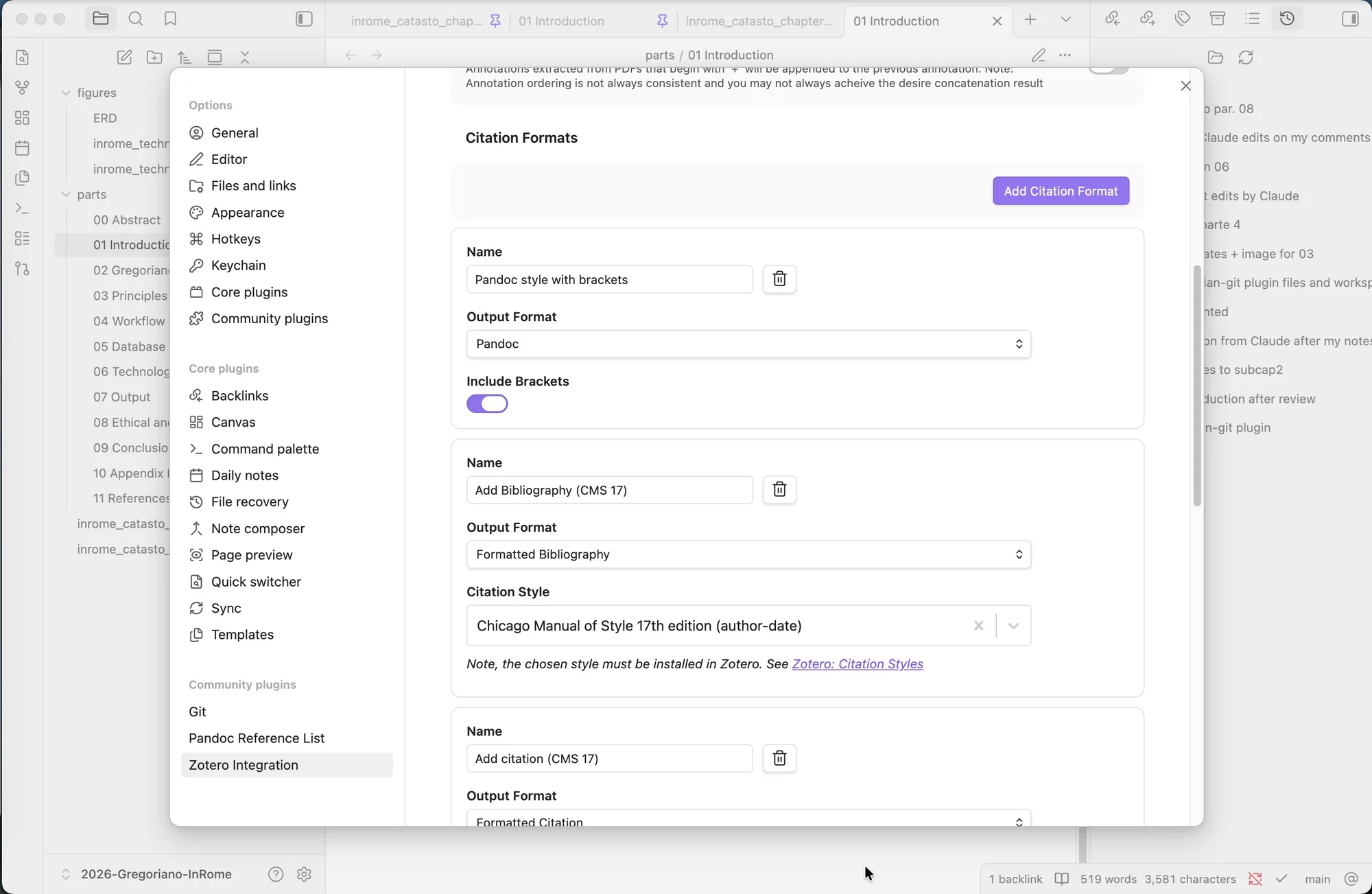
Configuration of the Citation Format in Zotero Integration.
Inserting a citation into the text
With Zotero open in the background, the process is as follows:
- Place the cursor at the point in the text where you want to insert the citation
- Open the command palette with
Cmd+P(macOS) orCtrl+P(Windows/Linux) - Search for and select Zotero Integration: Pandoc with Brackets
- The Zotero picker opens: search for the reference by author, title or year
- Select the reference — the citation is inserted into the text as
[@CitationKey]
You can (and it is recommended to) assign a shortcut to the command to avoid going through the palette every time. In Settings → Hotkeys, search for “Pandoc with Brackets” and assign a free key combination, for example Ctrl+Shift+Z.
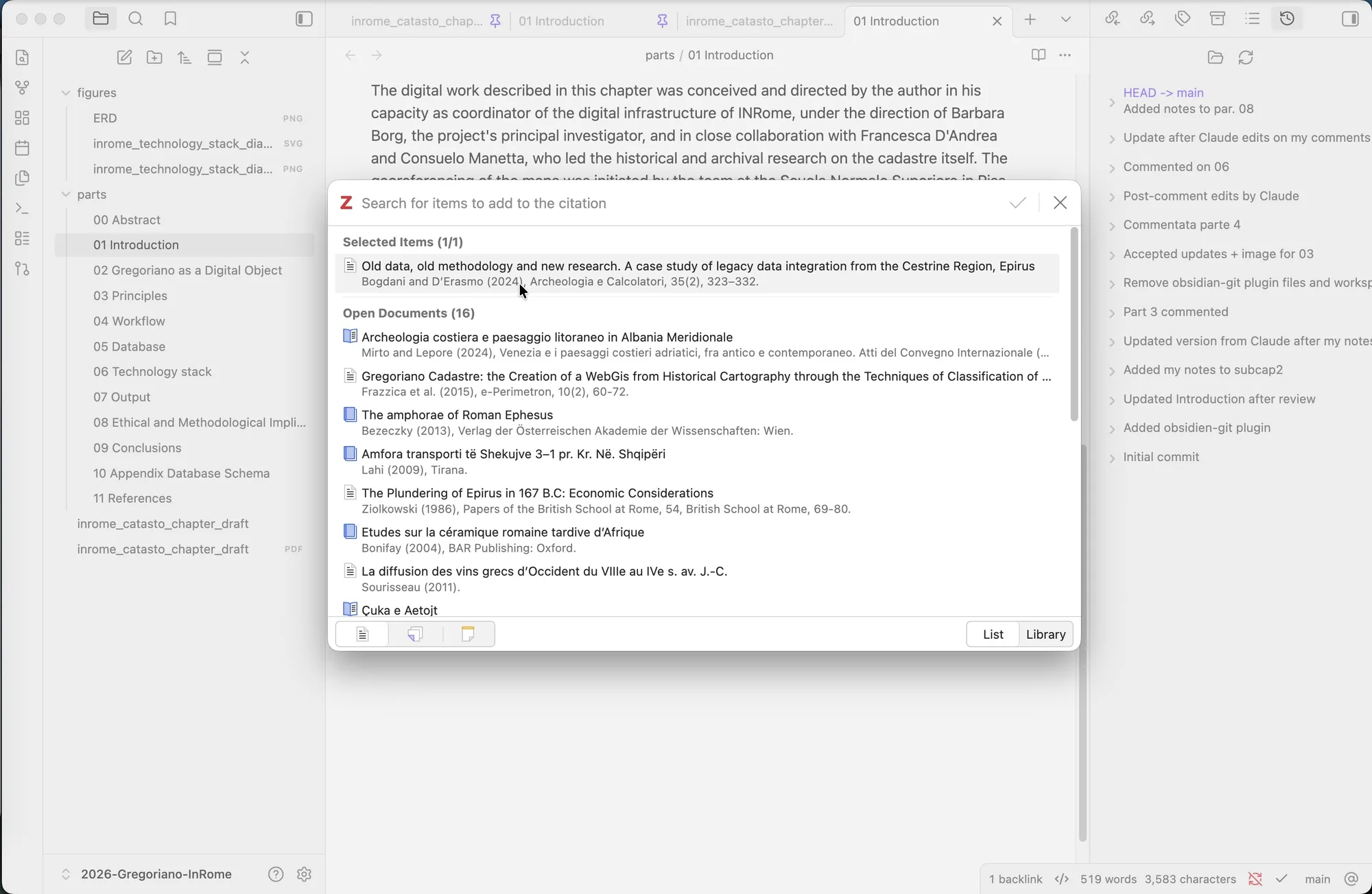
The Zotero picker opened from Obsidian via Zotero Integration.
Pandoc Reference List: the citation becomes readable
The second plugin, Pandoc Reference List, does two distinct but complementary things:
1. Inline visual replacement
In reading mode (or also in editing mode, depending on configuration), the code [@CitationKey] is replaced with the formatted bibliographic abbreviation, for example (Rossi 2020) or (Rossi, 2020, p. 45) according to the chosen CSL style. The underlying code remains [@CitationKey] — it is only a display change.
2. Bibliography list in the side panel
In Obsidian’s right-hand panel, the full list of references cited in the open document appears automatically, formatted in the chosen bibliographic style and updated in real time as you write.
This list can be copied and pasted at the bottom of the document or into any other text.
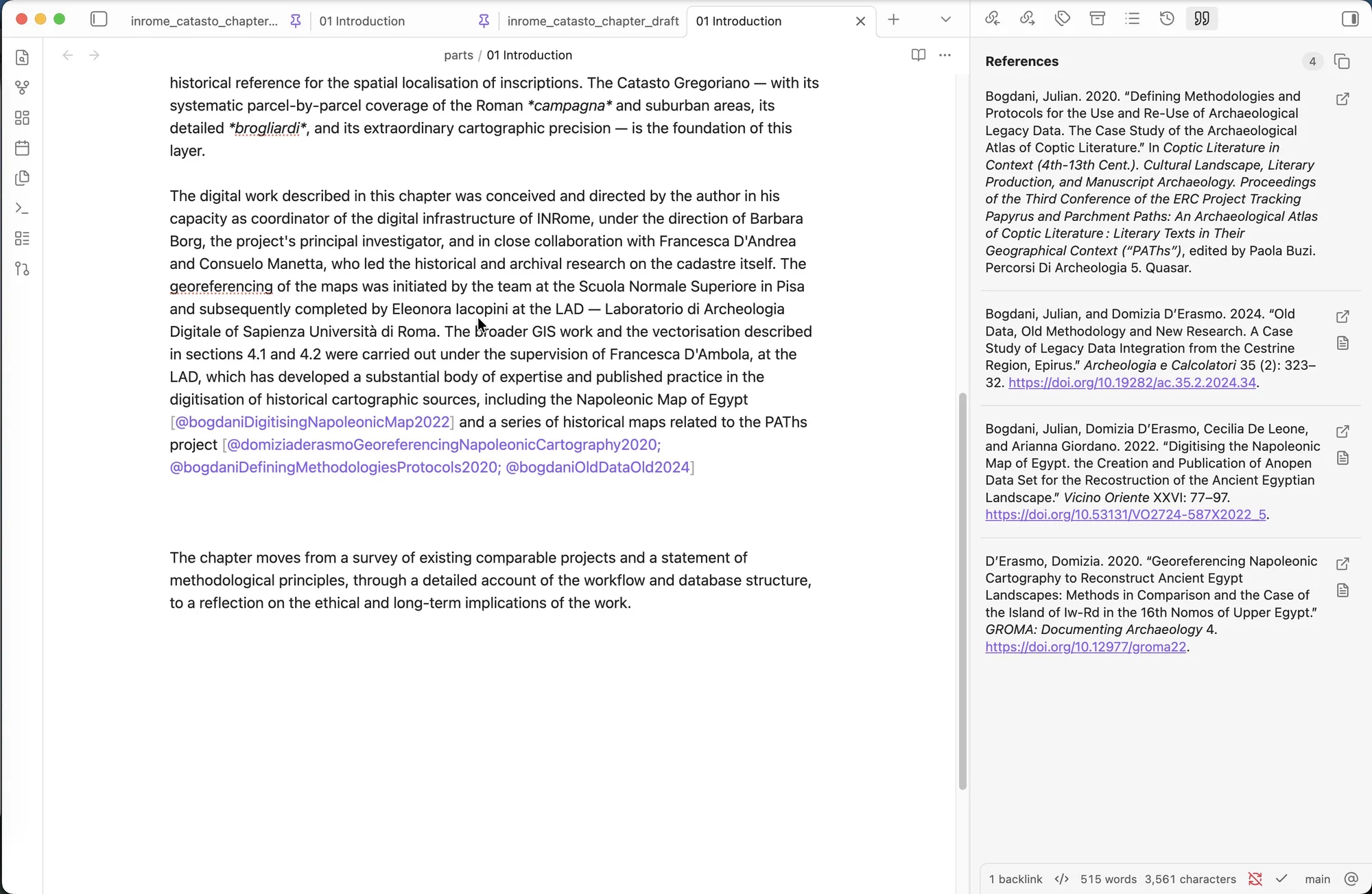
Pandoc Reference List in action: citations displayed inline and the bibliography list in the side panel.
The bibliographic style
Pandoc Reference List uses CSL (Citation Style Language) files — the same ones used by Zotero. In the plugin settings you can specify the path to a .csl file of your choice. Styles can be downloaded from the official CSL repository or directly from the Zotero interface.
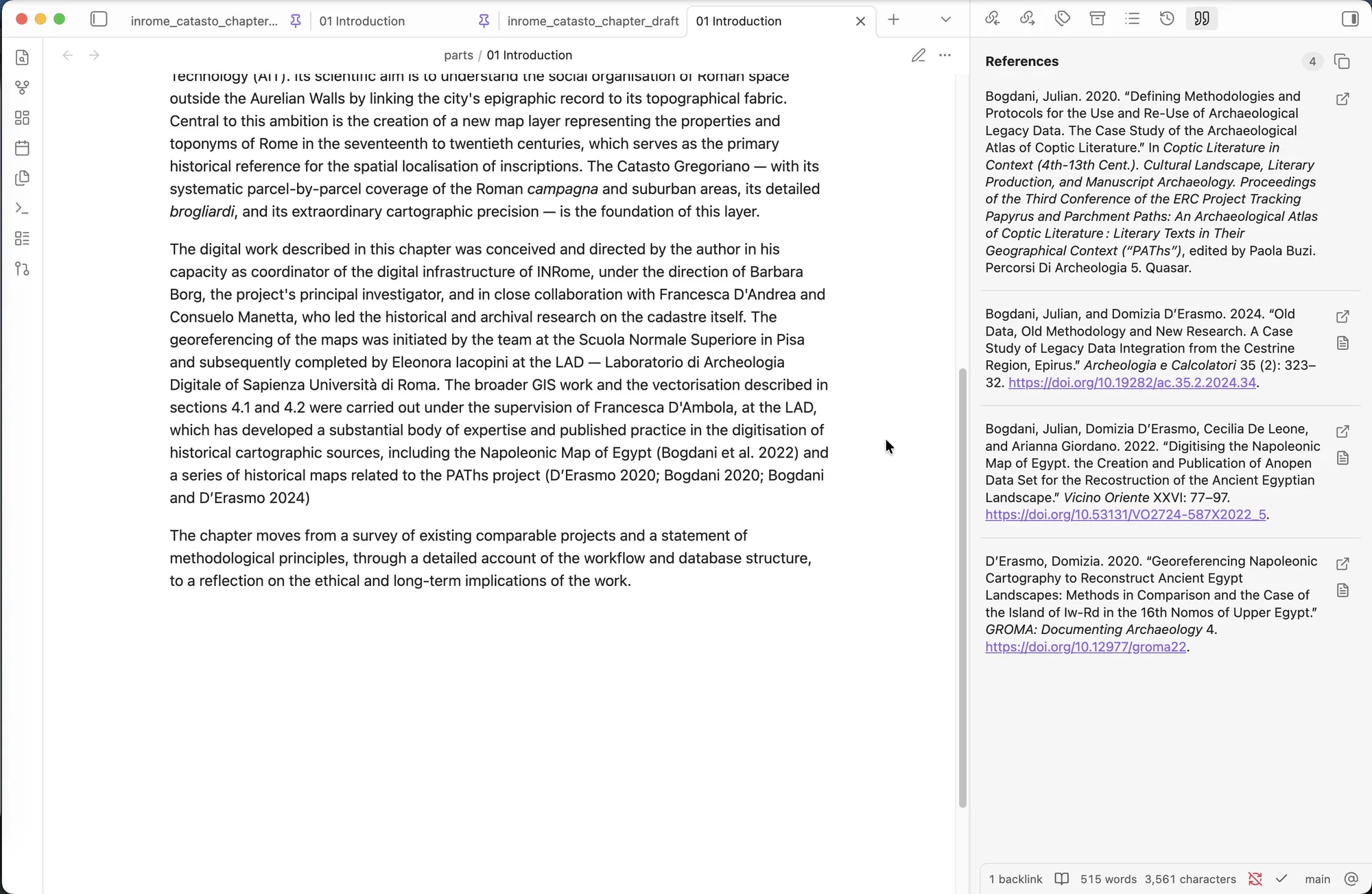
The same screen as before, but with citations displayed formatted by Pandoc Reference List.
Summary diagram
Zotero (running) │ └─ local server (port 23119) │ ├─ Zotero Integration → inserts [@CitationKey] into the text │ └─ Pandoc Reference List → displays inline abbreviations + bibliography list in the panelLimitations and caveats
- Zotero must be open while you write. If it is closed, neither the picker nor the reference list will work.
- The workflow produces citations as fixed text: if you export to
.docx, the citations are not live Zotero fields (unlike what happens when writing directly in Word). For those who need to deliver a.docxwith a dynamic bibliography, the problem exists and deserves a separate solution (Pandoc from the CLI with--citeproc). - This stack works well for the writing and revision phase in Obsidian; for final publication, the output format should be assessed case by case.